How-to guide, with real screens
Tokyo Disney wait time forecasts, and how to plan around them
A walk through Offpeak Parks using the real screens. There are only three things to do: pick a day, pick your rides, and rebuild on the day. No sign-up needed.
Last reviewed: 2026-10-06
Hi, I'm Suki! Let me show you around with the real screens. There are just three things to do.
STEP 1
Pick a quiet day
First, pick a day. The crowd calendar shows how busy each day looks for about the next year.
Aim for the ◎ days
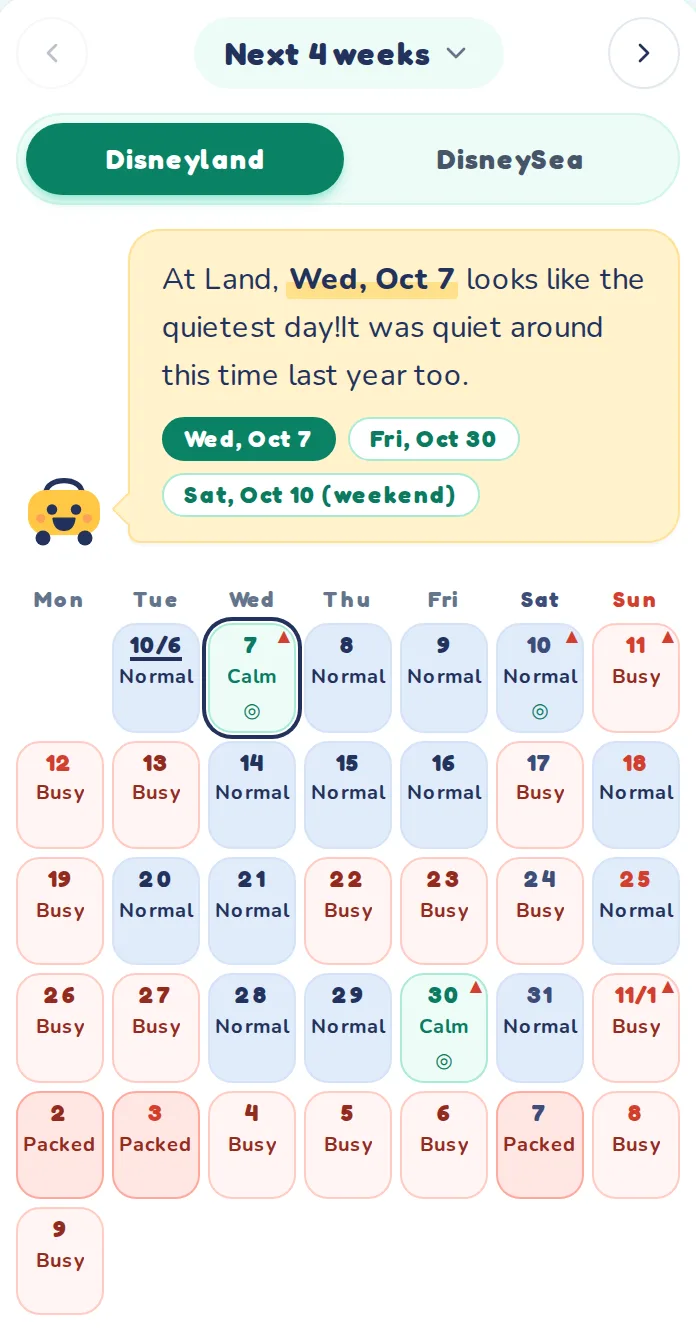
- Tap “Next 4 weeks” to switch to the month you want. You can look about a year ahead.
- Suki tells you the day that looks quietest, and why. Tap a date to select it.
- The color of each day shows the crowd level: green is quiet, and the closer to red, the busier. ◎ marks Suki's picks.
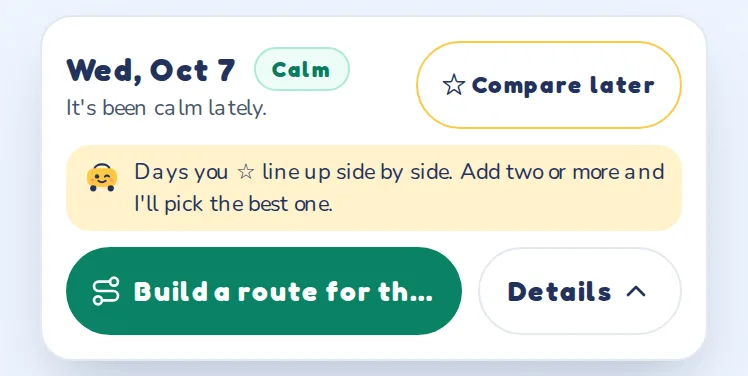
- Tap a date and a card at the bottom shows its crowd level and a word from Suki. Not sure yet? Tap “☆ Compare later”. Add two or more days to see them side by side, and Suki tells you which is best.
- Once you have decided, tap “Build a route for this day” to plan it right away. “Details” shows more about the day, such as the weather.
STEP 2
Choose who's going, which park, and when
Next, open the route planner and choose who's going, which park, and when.
Not sure? “Skip” works too
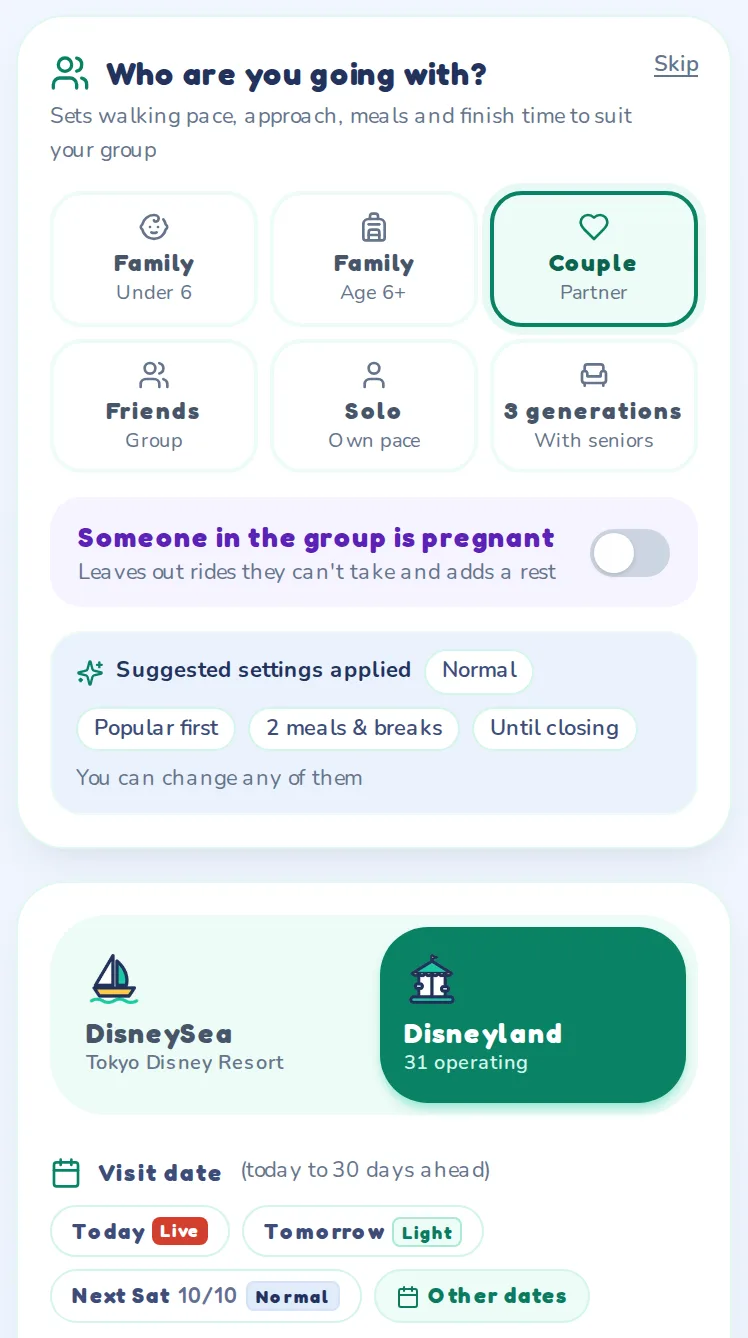
- Choose who you're going with, and we suggest a walking pace, meals and a leaving time. You can change all of them later.
- Choose the park.
- Choose the date. Each date shows how busy it looks.
Staying at a hotel? Choose it under “Staying over” further down, and the trips to and from the hotel are planned in too.
STEP 3
Pick the rides you want
Just tap the rides you want. The order gets worked out for you!
Save “Must do” for rides you can’t miss
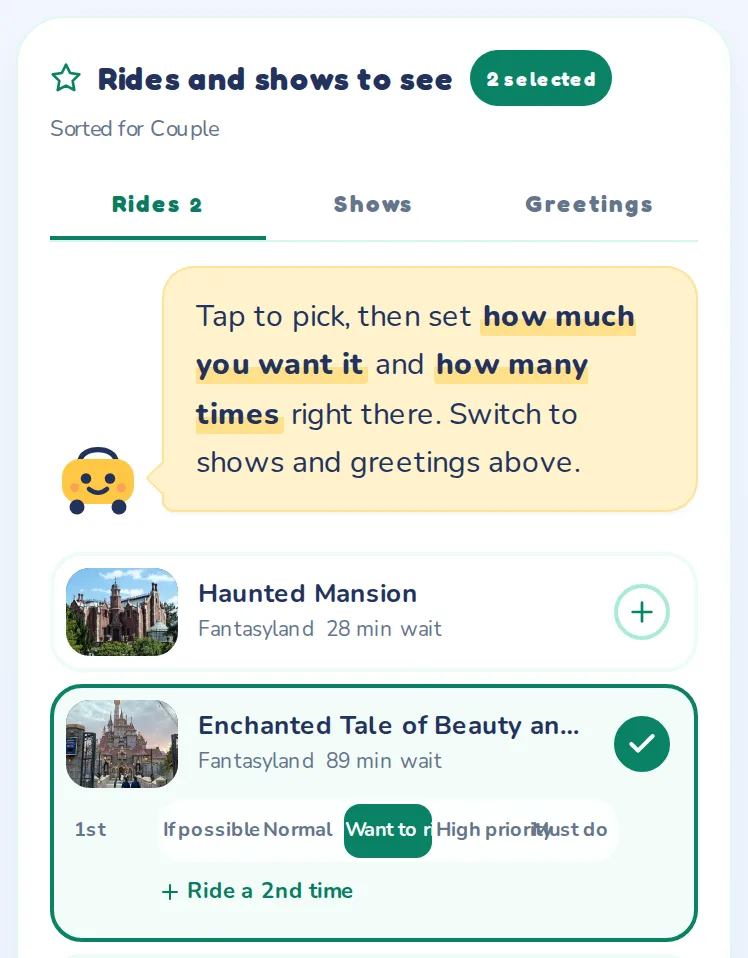
- Tap a ride to add it. Rides are sorted for who you are going with, and “Show more” at the bottom lists them all. Switch to shows and greetings with the tabs at the top.
- Under each pick, set how much you want it, from “If possible” to “Must do.” A “Must do” ride stays in even if time runs short. “+ Ride a 2nd time” plans a second go.
The rest of the time is filled in using the approach you choose: popular first, as many rides as possible, or relaxed. Rides you added to your want-to-ride list with ♡ on an attraction page show up at the top, already picked.
Build a routeSTEP 4
Check your route
Done! You'll see where to go, when, and how long you'll wait, stop by stop.
Save it and it’s one tap away on the day
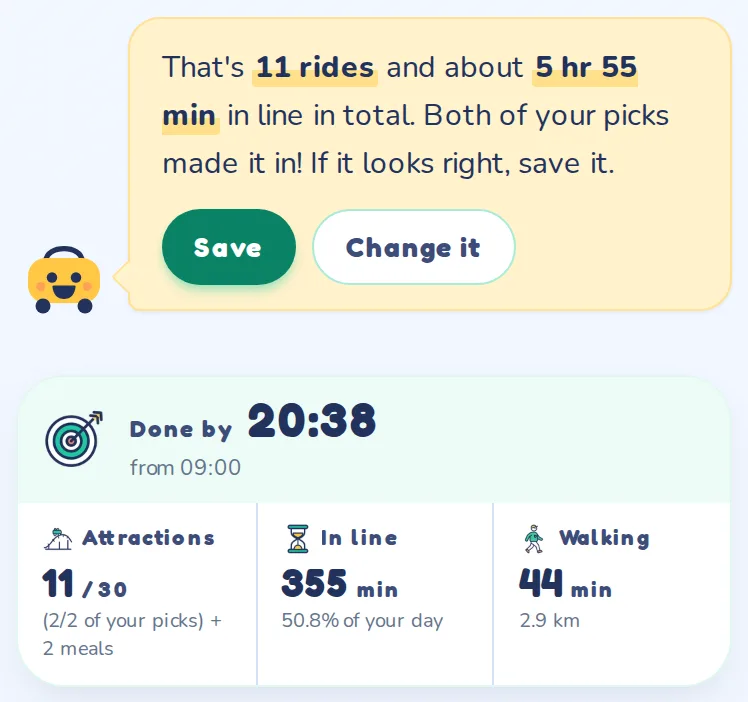
- Suki tells you how many rides you get and how long you'll wait in total. If it looks right, tap “Save”. If not, tap “Change it”.
- You also see your finish time, total wait and total walking.
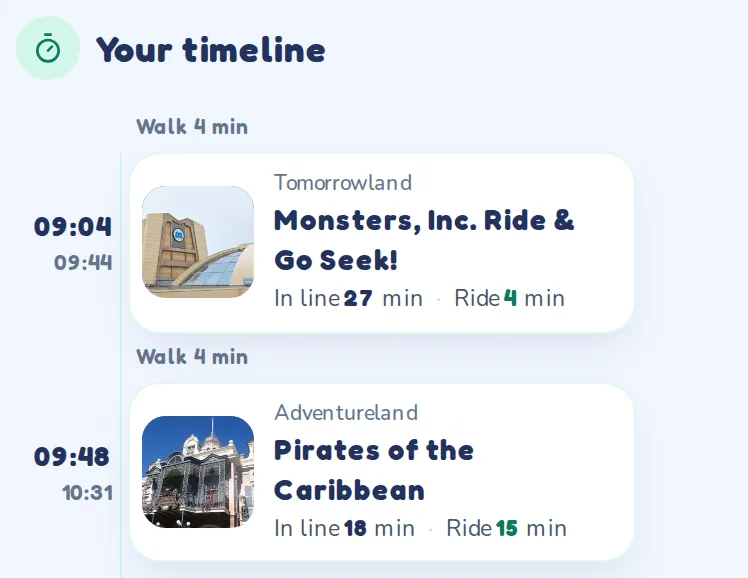
- Each stop is one row: when you get there, the forecast wait and the ride time. The walk between stops is shown in between.
A saved plan stays on this device and opens from the home page in one tap. Tap “Send” at the top to share it with the people you're going with.
STEP 5
On the day, rebuild with what's happening now
On the day, your next stop shows up big. Plans change, and that's OK. You can rebuild anytime with live waits.
Off schedule? Just tap. As often as you like
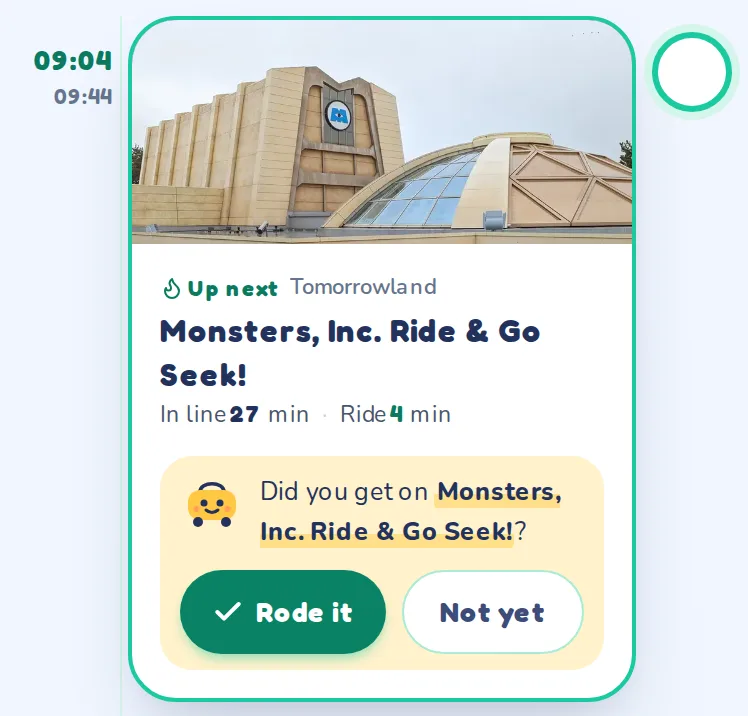
- On the day, only your “Up next” stop is shown large, with a photo. Tap “Rode it” when you're done and you move on to the next stop.
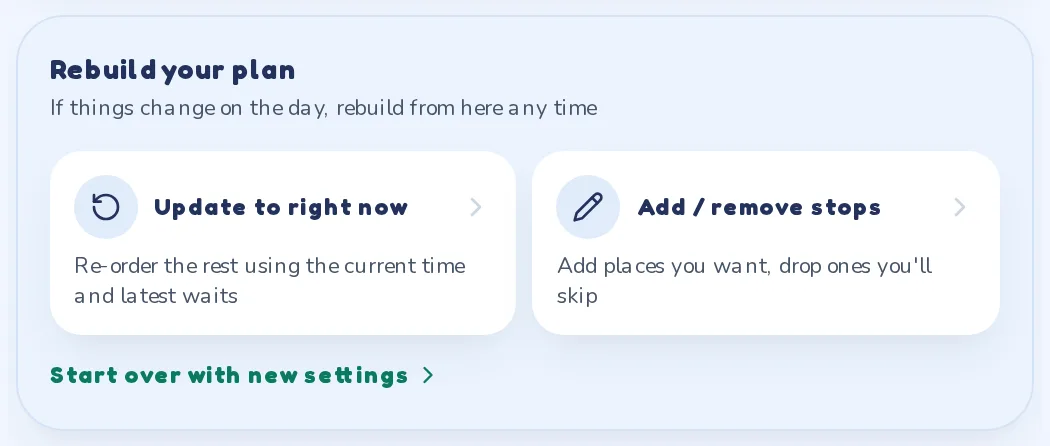
- “Update to right now” re-orders the rest of your day using the current time and the latest waits.
- “Add / remove stops” lets you add rides you want or drop ones you don't.
On a phone, these are the buttons at the bottom of the screen. If you're already in the park, choose “Start now” in the route planner to plan from the current time.
See current wait timesScreens as of October 6, 2026. The numbers change from day to day.
Give it a try
It's free, and there's no sign-up. Haven't picked a day yet? Try different dates as many times as you like!